Exporting a Tagged/Accessible PDF from Microsoft Word
Creation date: 8/20/2026 4:24 PM
Updated: 8/20/2026 4:40 PM
Word has several built-in tools to improve document readability and accessibility through tagging. This Knowledgebase article will provide step-by-step instructions on how to export a tagged/accessible PDF from Microsoft Word on both Windows and macOS operating systems.


Windows
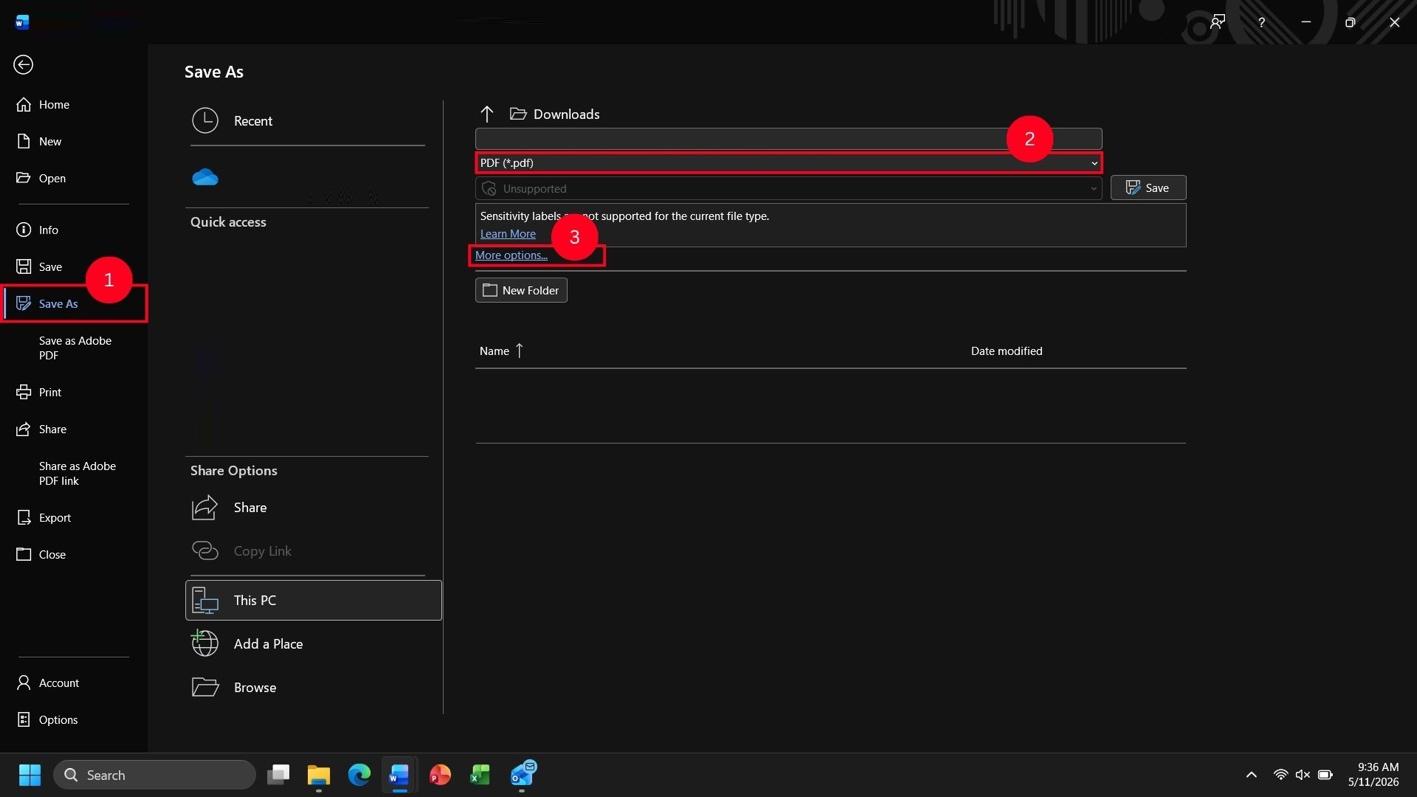
- Click Save As.
- Select PDF (*.pdf) from the dropdown menu.
- Click More options...
- Select Standard (publishing online and printing).
- Click Options.
- Check Document structure tags for accessibility
- Click Ok.
- Click Save.
macOS
- Click File.
- Click Save As... or Save a Copy...
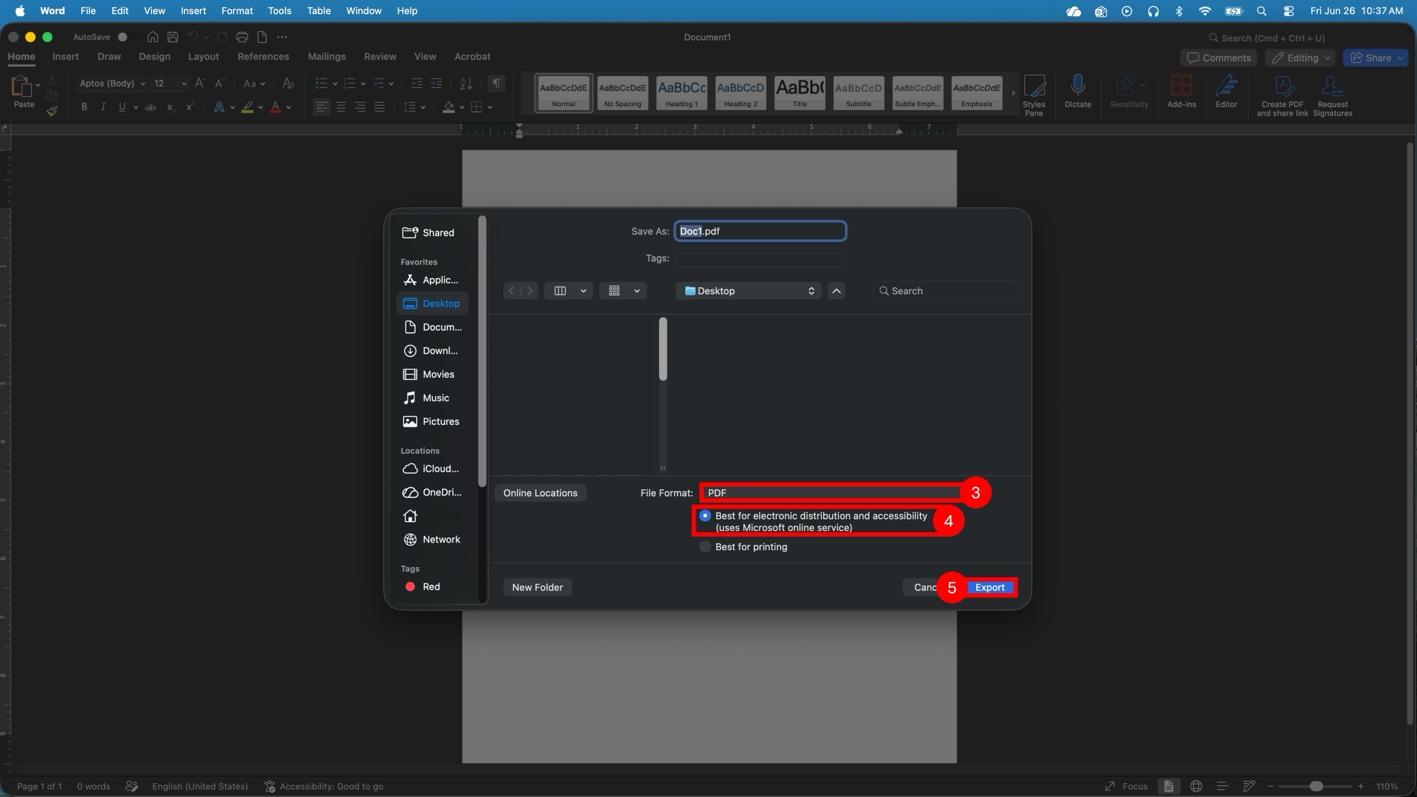
- Select PDF from the dropdown menu.
- Select Best for electronic distribution and accessibility (uses Microsoft online service).
- Click Export.