How to Set Up Multi-Factor Authentication (MFA) on a New Device
Whenever you upgrade to a new phone or reset your phone to reconfigure it, you will need to add your new device as an authentication method for your Bluefield University account and remove your old device. This Knowledgebase article provides step-by-step instructions on setting up MFA on a new device and removing your previous device, covering two approaches: one for users who still have their previous device set up with the Microsoft Authenticator app, and another for those who no longer have access to their previous device.
Important Note: If you have never set up Multi-Factor Authentication for your account, please reference this support article instead for step-by-step instructions.
1: If You Still Have Access to Your Previous Authentication Device
- Go to https://mysignins.microsoft.com/security-info and sign into your Bluefield email.
- On the "Security Info" page, click "Add sign-in method."

- Select "Microsoft Authenticator."
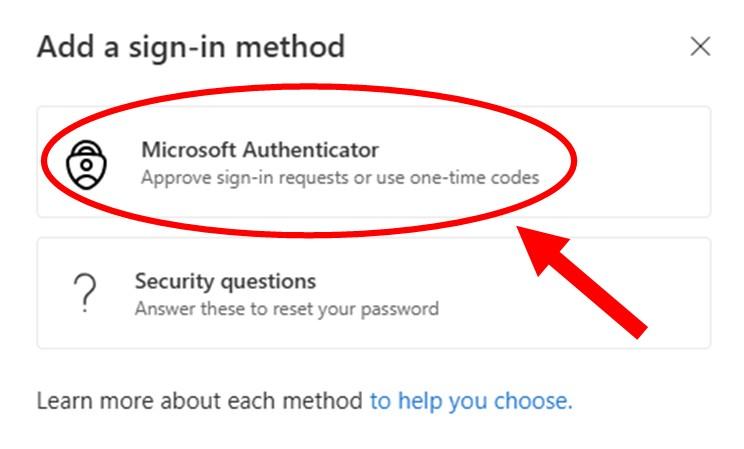
- Select "Next" through the various dialog boxes until you reach a screen with a QR code on it.

- Open the Microsoft Authenticator app on your new device and select "Verified IDs", then select "Scan a QR code."
- After scanning the QR code, you will have to do a test authentication to link your new device to your account as an authentication method. After this test, select "Done."

- You should now see 2 Microsoft Authenticator entries on your Security info page. Now, select "Delete" on the entry corresponding to your old device that you are moving away from.

- Press "Ok."

- Your device authentication has now been successfully moved off of your old device and onto your new one.
2: If You No Longer Have Access to Your Previous Authentication Device
- If you no longer have access to a device that was set up for multi-factor authentication, it will require administrative access to remove your old device and add a new one.
- You can put a support ticket in using the support portal or by sending an email to support@bluefield.edu.
- Once you put in a ticket, one of our technicians will reach out and send you a link to schedule a Teams meeting. During that meeting, you will be asked to verify your identity and then your MFA will be reset. Please note that you must have your camera turned on during the video call and have your driver's license available, as per our increased security standards.
- Once your old device has been removed, you will use your new device to register for MFA from the beginning. If you have any questions about this process, please reference our article on how to set up multi-factor authentication from scratch.
Multi-factor authentication is an important part of Bluefield University's security measures, and we appreciate your assistance in making our campus a safer and more secure place. If you have any questions about this process, please feel free to reach out by emailing support@bluefield.edu.